Automations#
An Automation runs immediately after a Contact has been saved or updated. It looks for changes to the Contact and, based on the Automation’s Conditions, performs one or more Actions.
Conditions and Actions#
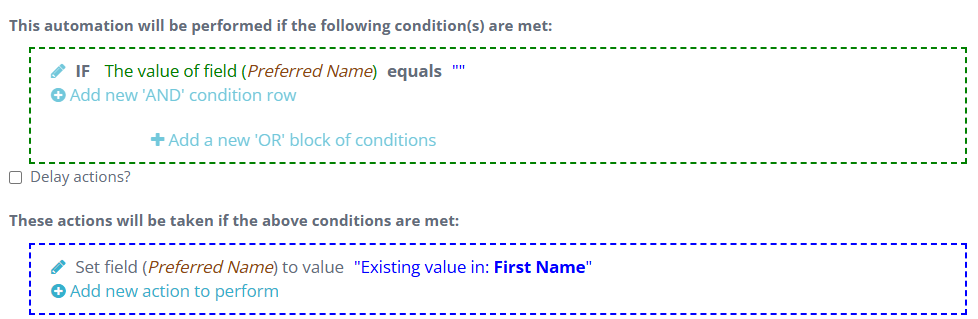
Conditions determine when an Automation should run its Actions. Actions define what Jetstream does when those Conditions are met.
For example, an Automation can check whether a Contact’s Preferred Name field is blank. If the Contact is saved while that field is blank, the Automation can set the value of Preferred Name to the Contact’s First Name.
This allows an Automation to fill in or update Contact information immediately when the Contact is saved.
Conditions#
Automation Conditions work in a way that is very similar to the Conditions used when building a Custom Report. They check Contact field values and other criteria to determine whether the Automation should perform its Actions.
Actions#
Jetstream provides several types of Actions. After selecting an Action, click the gear icon to configure it.
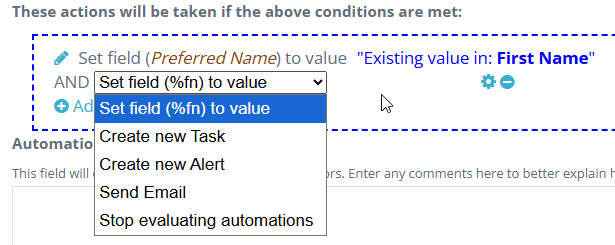
Set field (%fn) to value#
Sets any Contact field to a value. The value can be static or based on the value of another field.
Create new Task#
Creates a new Task for the Contact. You can set the Task description and due date.
Create new Alert#
Creates a Jetstream Alert with a specific message about the Contact. Depending on the user’s settings, the user may receive an email notifying them about the Alert.
Send Email#
Sends an email to one or more recipients, such as the Contact, the Contact’s Contact Owner, or other people. You can configure the email subject and message.
Stop evaluating automations#
Automations normally run through the entire list of Automations in order. If Jetstream receives the Stop evaluating automations command, it does not process any further Automations.
This Action does not have anything to configure, but you must still click the gear icon to confirm and apply it.
Delaying Actions#
You can delay an Automation’s Actions by checking Delay actions?. This lets you queue the Actions for a specified number of minutes, hours, or days before they are taken.
For example, when a new student is entered into Jetstream, you might delay an Automation for 20 minutes before it sends a Welcome email.
Automation Conditions are similar to the Conditions used in Custom Reports. Actions can create Tasks, send emails using Email Templates, and appear in the Contact Timeline.