Surveys#
Surveys are simple forms that can be created and sent to Contacts to collect their responses. Each Survey is intended for one-time use.
After a Contact submits a Survey, you can view the response in either of these locations:
- On the Contact’s Communications -> Surveys/Posts screen
- In the Custom Survey Results report
Creating a survey#
When designing Survey questions, you can select from different question types:
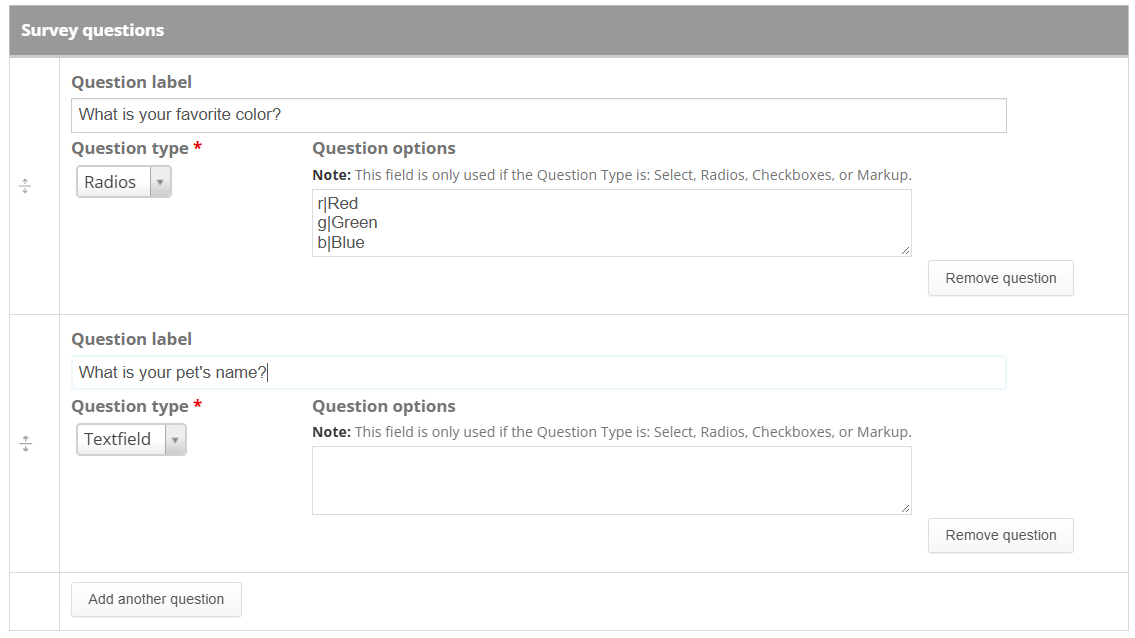
- Textfield
- A single line of text that the recipient can enter, up to 255 characters.
- Textarea
- A resizable box that can hold many lines of text.
- Select
- A pulldown or select list of options.
- Radios
- A list of options where the recipient can make exactly one selection.
- Checkboxes
- A list of options where the recipient can make one or more selections.
- File
- Allows the recipient to upload a file.
- HTML Markup
- Uses the Options box to allow the Survey designer to insert custom HTML or other text. Only basic HTML tags are allowed.
Options format#
For Select, Radios, and Checkboxes questions, enter options one per line using this format:
key|valueFor example:
r|Red
b|Blue
g|Green
The pipe character (|) is required. If the pipe character is not present, the form will be rejected. The pipe character is usually located above the Enter key on the keyboard.
Sending a Survey Link by email#
Each Survey and Contact combination can be submitted only once. To send a Survey to a student by email, use a Replacement Pattern instead of copying or creating a general Survey link.
When editing the email, open the available Replacement Patterns and look under Surveys and Forms. The Survey replacement pattern creates a link for the specific Contact receiving the email.
Place the replacement pattern in the email text. When the email is sent, the pattern is converted into a full link that displays as Click Here to Begin.
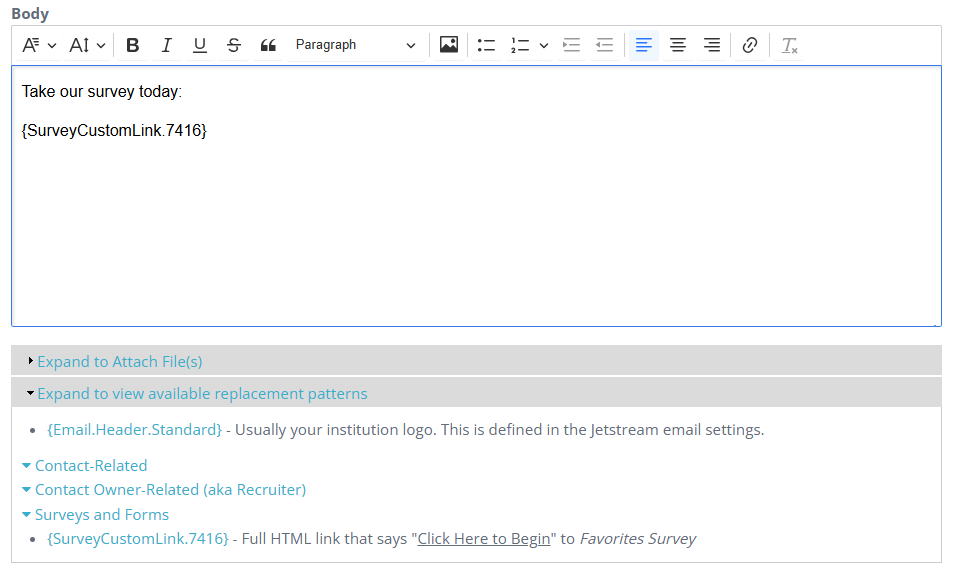
The Survey link is different for each Contact. After the student submits the Survey, selecting the same link again displays a message stating that the Survey has already been submitted.
For Survey responses, see the Contact Communications page. The built-in Custom Survey Results report is listed on the Reports page. Survey email links use Email Templates.